


5/5 - (1 vote)
How Car Owners Can Add Vehicle Types and Classes in Turo Clone
When listing vehicles on a Turo clone platform, understanding the difference between vehicle types and vehicle classes is important. Vehicle types refer to the broad category of the vehicle, such as cars, trucks, motorcycles, or vans. Vehicle classes further define those types into specific segments like SUV, sedan, luxury, or economy.
This structured approach helps keep the marketplace organized and makes it easier for renters to find the right vehicle. The platform admin controls these settings through the admin panel, ensuring consistency across listings while allowing car owners to add and manage vehicles smoothly.
Adding and Managing Vehicle Types from the Admin Panel
The Vehicle Type section in the admin panel helps organize different kinds of vehicles before owners list them on the platform. This setup ensures that cars, trucks, motorcycles, and other vehicles are displayed correctly to renters and remain easy to manage as the marketplace grows.
Step 1: Access the Vehicle Type Tab
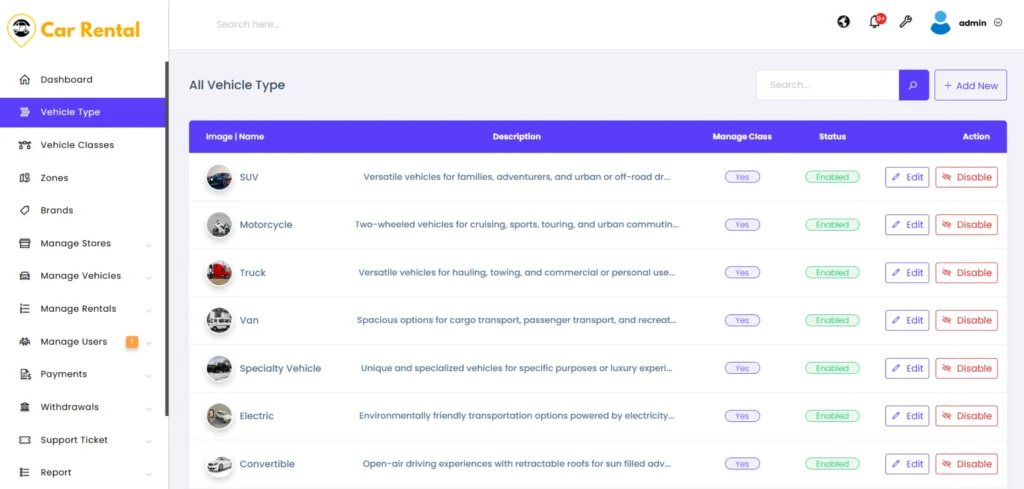
Log in to the admin panel and navigate to the Vehicle Type tab. Here, you can see all existing vehicle types already added to the platform. Each listed vehicle type shows:
- Vehicle image
- Name and description
- Current status (Enabled or Disabled)
- Action options to edit or disable
You can also use the Search option to quickly find a specific vehicle type from the list.
Step 2: Add a New Vehicle Type
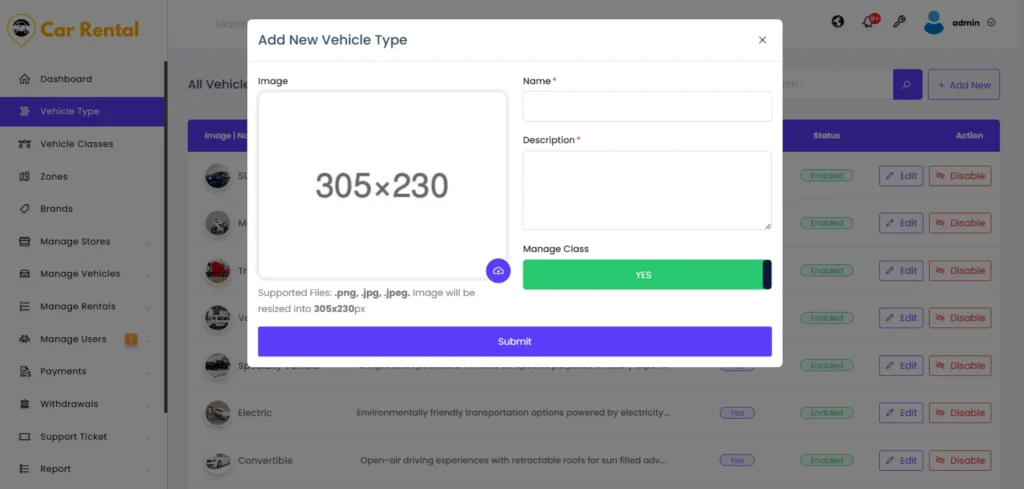
To create a new category, click on Add New. Fill in the required details:
- Upload a vehicle type image
- Enter the vehicle type name (for example, Cars or Trucks)
- Add a short description
- Choose whether to enable Manage Class (Yes or No)
The Manage Class option allows you to add multiple classes, such as SUV or Sedan, under this vehicle type. After filling in the details, submit the form to activate the new vehicle type.
Step 3: Edit or Manage Existing Vehicle Types
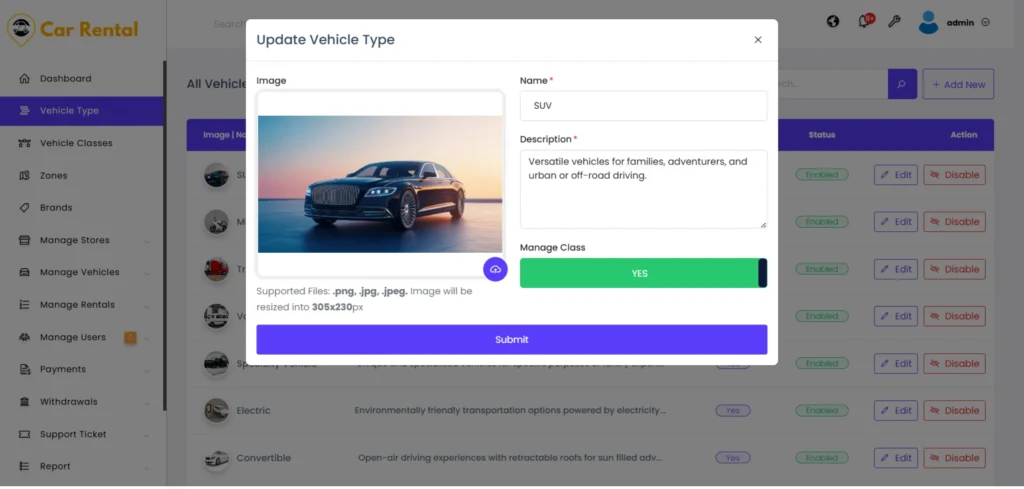
At any time, admins can edit vehicle type details or change their status. Disabling a vehicle type temporarily removes it from listings without deleting data. This flexibility helps platform owners maintain control, ensure accurate listings, and support smooth onboarding for vehicle owners.
Creating and Managing Vehicle Classes
Vehicle classes help further organize listings under each vehicle type. While vehicle types define the main category (such as cars or trucks), vehicle classes allow you to group similar vehicles, like sedan, SUV, luxury, or economy. This structure makes it easier for renters to browse and helps vehicle owners list their vehicles accurately.
Step 1: Navigate to the Vehicle Classes Tab
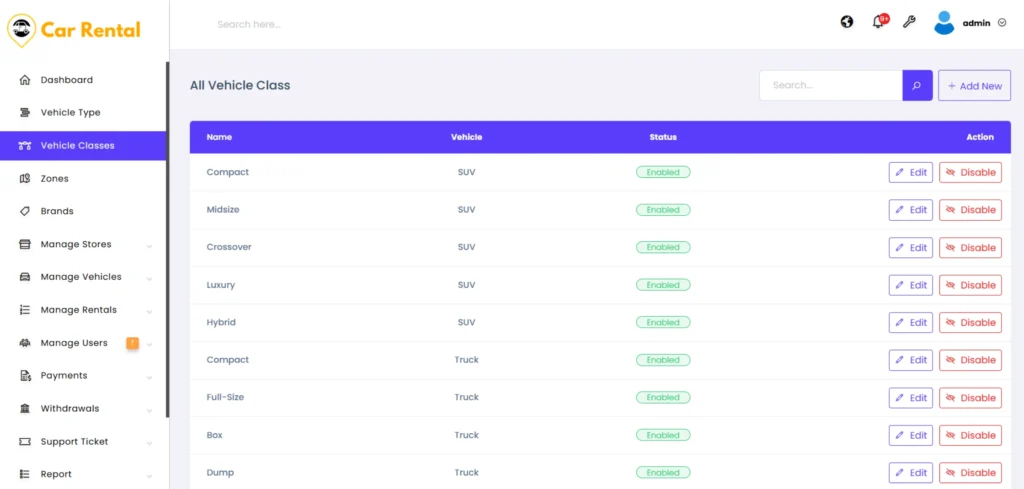
From the admin panel, go to the Vehicle Classes tab. This section displays all existing vehicle classes added to the platform. Each class entry includes:
- Class name
- Linked vehicle type (Cars, Trucks, Motorcycles, etc.)
- Status (Enabled or Disabled)
- Action options to edit or disable
Step 2: Add a New Vehicle Class
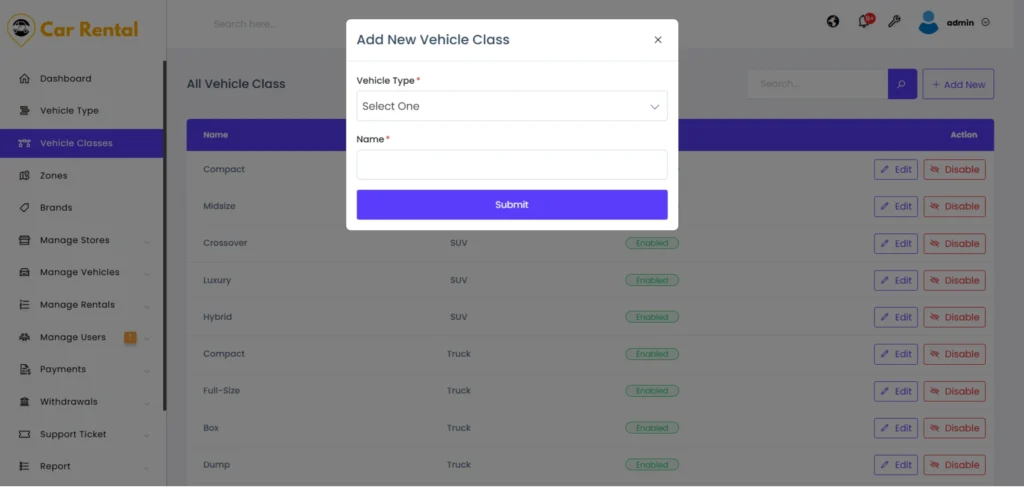
To create a new class, click on Add New. Start by selecting the relevant vehicle type from the dropdown menu. For example, if you choose Cars, you can then create classes such as Sedan, Hatchback, or SUV. Next, enter the vehicle class name and submit the form. Once added, the class becomes available for vehicle owners when listing their vehicles.
Step 3: Edit or Manage Vehicle Classes
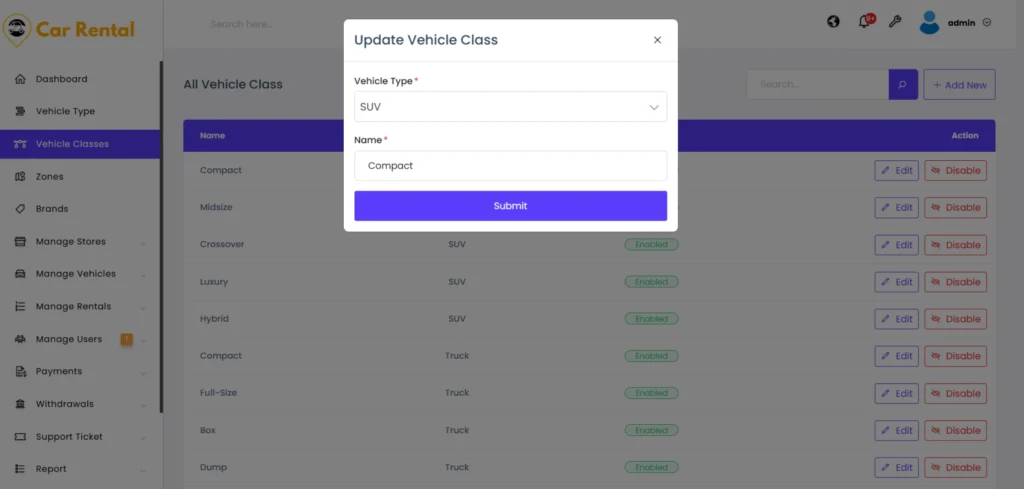
Admins can edit class names or change their status at any time. Disabling a vehicle class temporarily hides it from new listings without removing existing data. This allows platform owners to adapt categories based on market demand and keep the marketplace well-organized.
How This Workflow Helps Car Owners
- Keeps vehicle listings well-structured by clearly separating vehicle types and classes, reducing confusion for both owners and renters.
- Makes onboarding easier for car owners by guiding them to list vehicles under the correct category and class from the start.
- Helps renters browse and filter vehicles accurately, improving search results and booking experience.
- Allows admins to scale vehicle categories smoothly as new vehicle types or classes are added without affecting existing listings.
- Improves overall marketplace structure and consistency as inventory grows, supporting long-term platform growth.
If you want to experience this workflow in real time, check out our Zipprr Turo Clone demo.
Contact Email : [email protected]
Mobile : +91 97893 08131
Demo :
zipprr.com/turo-clone